


In our increasingly connected world, cybersecurity is no longer just a concern for large corporations and government agencies—it’s a critical skill that everyone needs to master. Whether you’re 8 or 80, understanding how to protect yourself online can save you from identity theft, financial loss, emotional distress, and privacy violations. This comprehensive guide will teach you the essential cybersecurity skills needed to navigate the digital world safely and confidently.
Understanding Cybersecurity: More Than Just Technology
What is Cybersecurity and Why Does Everyone Need It?
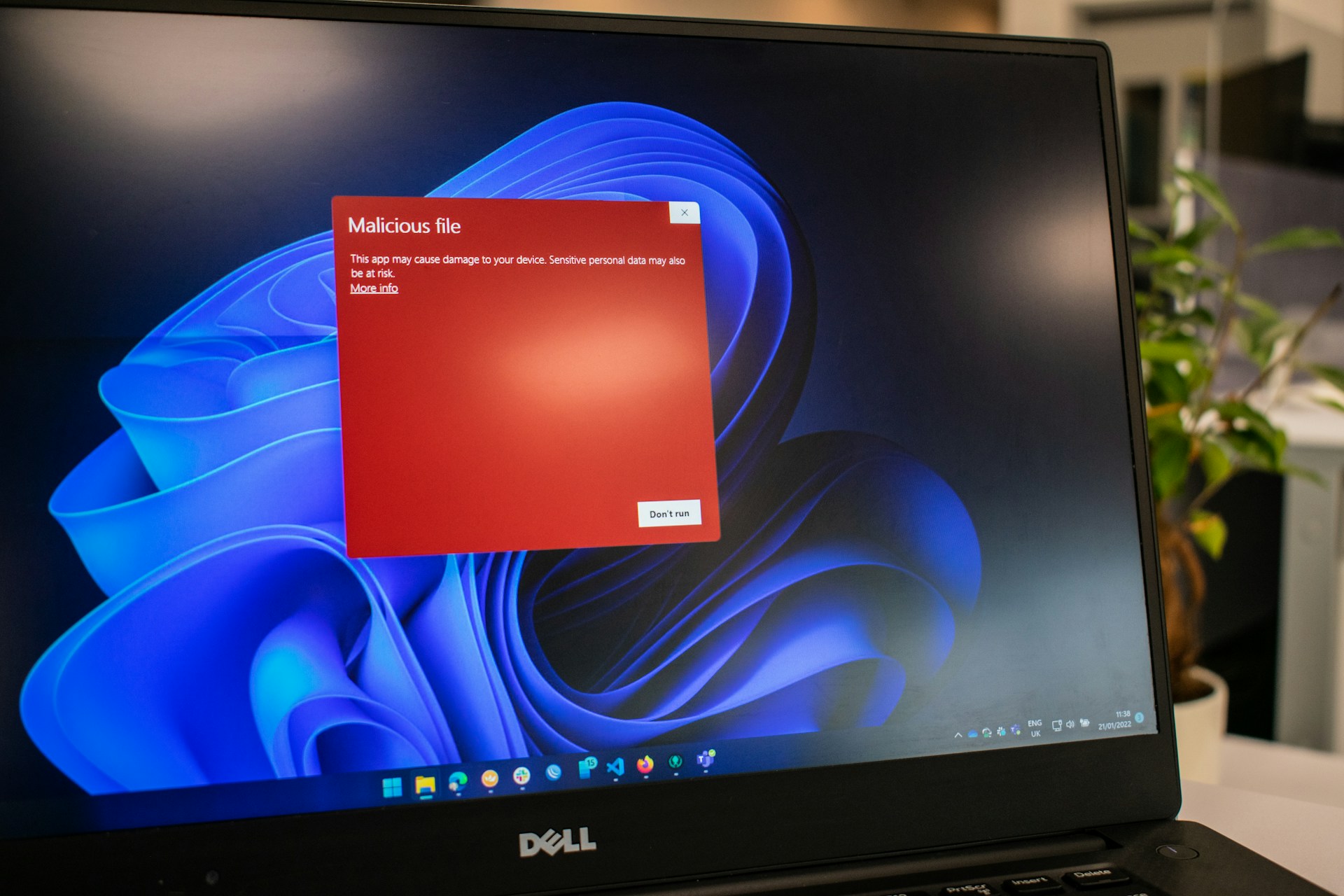
Cybersecurity isn’t just about having the latest antivirus software—it’s about developing smart digital habits and understanding how to protect yourself in an interconnected world.
Core Cybersecurity Principles:
- Confidentiality: Keeping your personal information private and secure
- Integrity: Ensuring your data hasn’t been tampered with or corrupted
- Availability: Making sure you can access your accounts and information when needed
- Authentication: Verifying that you are who you claim to be online
- Authorization: Controlling what information and systems you have access to
- Non-repudiation: Ensuring that digital transactions and communications cannot be denied
Why Cybersecurity Matters for Everyone:
- Financial Protection: Preventing theft of banking information and credit card details
- Identity Safety: Protecting personal information from being stolen and misused
- Privacy Preservation: Keeping personal communications and data confidential
- Professional Security: Protecting work-related information and maintaining career reputation
- Family Safety: Ensuring children and elderly family members are protected online
- Digital Reputation: Maintaining control over your online presence and image
The Current Threat Landscape
Common Cyber Threats Everyone Faces:
- Phishing Attacks: Fraudulent emails and messages designed to steal information
- Identity Theft: Criminals using your personal information for financial gain
- Ransomware: Malicious software that locks your files until you pay money
- Social Engineering: Psychological manipulation to trick people into revealing information
- Data Breaches: When companies you trust have their security compromised
- Public Wi-Fi Risks: Unsecured networks that can expose your information
Why Traditional Security Isn’t Enough:
- Human Factor: Most security breaches involve human error or manipulation
- Evolving Threats: Cybercriminals constantly develop new attack methods
- Mobile Vulnerability: Smartphones and tablets present unique security challenges
- IoT Expansion: Smart home devices create new entry points for attackers
- Cloud Dependency: Storing data online requires understanding new security considerations
Essential Password Security: Your First Line of Defense
Creating and Managing Strong Passwords
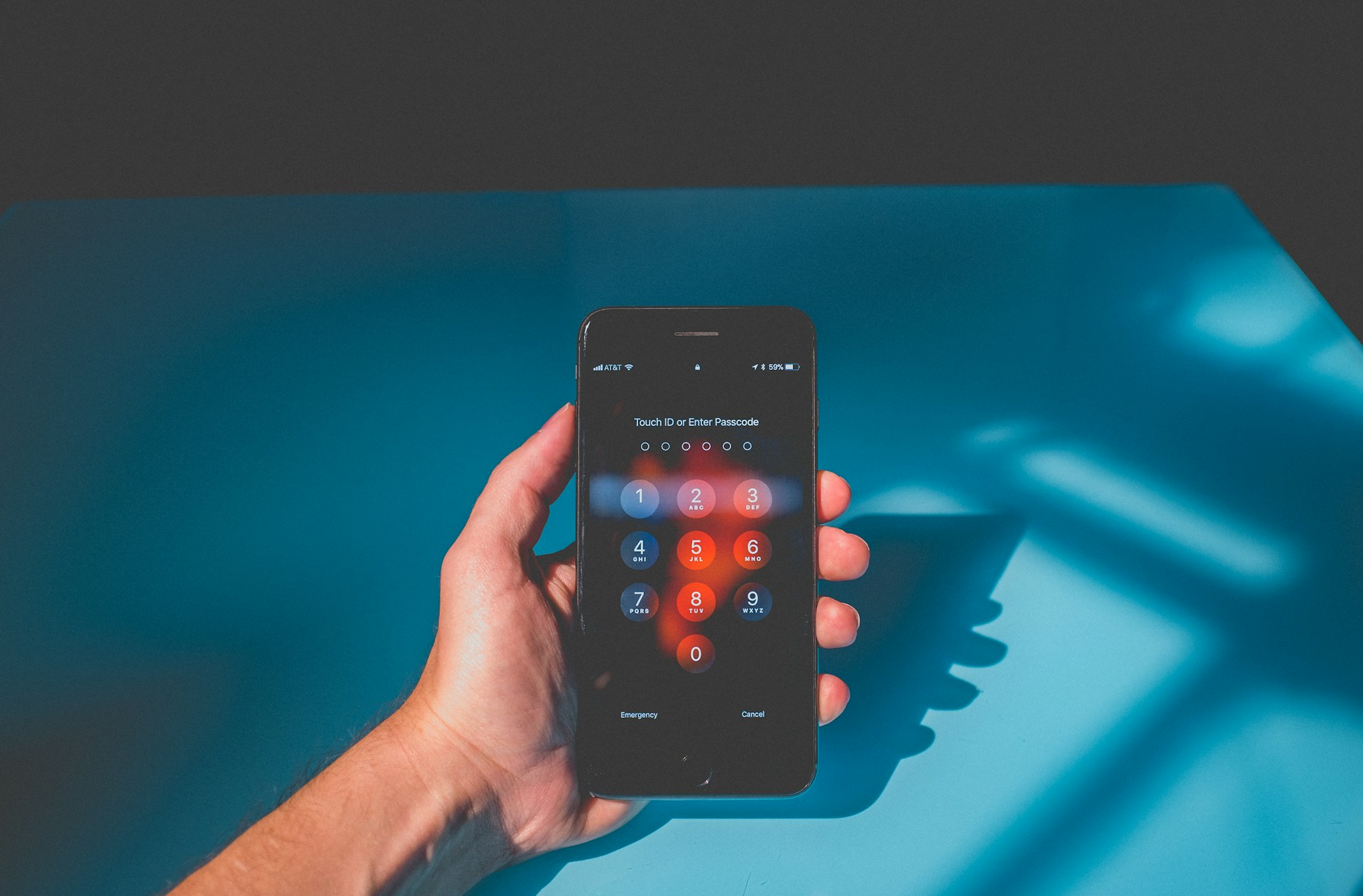
The Anatomy of a Strong Password:
- Length: At least 12-16 characters (longer is better)
- Complexity: Mix of uppercase, lowercase, numbers, and special characters
- Uniqueness: Different password for every account
- Unpredictability: Avoid dictionary words, personal information, and common patterns
- Memorability: Use passphrases or memory techniques for important passwords
Password Creation Strategies:
- Passphrase Method: “Pizza!Loves#Dancing@Midnight2025” (easier to remember, hard to crack)
- Substitution Technique: Replace letters with numbers/symbols (but avoid obvious substitutions)
- Sentence Method: Take first letters of a memorable sentence and add numbers/symbols
- Random Generation: Use password managers to create truly random passwords
- Base Plus Variation: Create a strong base and modify it slightly for different accounts
Password Management Best Practices:
- Use a Password Manager: Tools like LastPass, 1Password, Bitwarden, or built-in browser managers
- Enable Two-Factor Authentication: Add an extra security layer to important accounts
- Regular Updates: Change passwords if you suspect compromise or after data breaches
- Secure Storage: Never store passwords in plain text files or sticky notes
- Emergency Access: Ensure trusted family members can access critical accounts if needed
Two-Factor Authentication (2FA): Double Your Security
Understanding 2FA Options:
- SMS Text Messages: Codes sent to your phone (convenient but less secure)
- Authenticator Apps: Google Authenticator, Authy, Microsoft Authenticator (more secure)
- Hardware Keys: Physical devices like YubiKey (most secure for high-value accounts)
- Biometrics: Fingerprints, face recognition, voice recognition (device-dependent)
- Email Backup: Secondary email for account recovery (use carefully)
Setting Up 2FA Step-by-Step:
- Choose Your Method: Start with authenticator apps for best balance of security and convenience
- Download Authenticator App: Install Google Authenticator, Authy, or similar on your phone
- Enable 2FA on Important Accounts: Start with email, banking, and social media
- Scan QR Codes: Link your accounts to the authenticator app
- Save Backup Codes: Store recovery codes in a secure location
- Test the Setup: Verify that 2FA works before logging out
Recognizing and Avoiding Phishing Attacks
Identifying Fraudulent Communications

Common Phishing Red Flags:
- Urgent Language: “Act now!” “Limited time!” “Account will be closed!”
- Generic Greetings: “Dear Customer” instead of your actual name
- Suspicious Sender: Email addresses that don’t match the supposed organization
- Grammar/Spelling Errors: Professional companies proofread their communications
- Unexpected Attachments: Files you didn’t request, especially .exe, .zip, or .doc files
- Suspicious Links: URLs that don’t match the legitimate website address
Email Phishing Tactics:
- Impersonation: Pretending to be banks, government agencies, or popular services
- Fear Tactics: Threatening account closure or legal action if you don’t respond
- False Urgency: Claiming immediate action is required
- Fake Rewards: Promising prizes, refunds, or special offers
- Technical Scaremongering: Warning of viruses or security breaches that don’t exist
Advanced Phishing Techniques:
- Spear Phishing: Targeted attacks using personal information about you
- Business Email Compromise: Impersonating colleagues or business partners
- Social Media Phishing: Fake messages through Facebook, Instagram, LinkedIn
- SMS Phishing (Smishing): Fraudulent text messages
- Voice Phishing (Vishing): Phone calls requesting personal information
Safe Email and Communication Practices
Email Security Checklist:
- Verify the Sender: Check if the email address matches the organization’s official domain
- Examine Links Carefully: Hover over links to see the actual destination before clicking
- Be Skeptical of Attachments: Only open attachments you’re expecting from trusted sources
- Use Official Websites: Log into accounts directly rather than clicking email links
- Report Suspicious Emails: Use your email provider’s spam/phishing reporting features
- Keep Software Updated: Ensure your email client and browser have latest security patches
Safe Communication Guidelines:
- Personal Information: Never share SSN, passwords, or financial details via email
- Verification Process: Call organizations directly using official phone numbers to verify requests
- Official Channels: Use official websites and apps rather than responding to unsolicited emails
- Trust Your Instincts: If something feels wrong, it probably is—take time to verify
- Education Sharing: Teach family members and friends about phishing tactics
Protecting Your Personal Data and Privacy
Understanding Data Privacy in the Digital Age
Types of Personal Data to Protect:
- Identity Information: Name, address, phone number, Social Security Number
- Financial Data: Bank accounts, credit cards, investment information
- Login Credentials: Usernames, passwords, security questions
- Biometric Data: Fingerprints, facial recognition, voice patterns
- Location Information: GPS data, check-ins, travel patterns
- Digital Behavior: Browsing history, search queries, online purchases
Privacy Settings and Controls:
- Social Media Privacy: Limit who can see your posts, photos, and personal information
- Browser Settings: Control cookies, tracking, and data collection
- Mobile App Permissions: Review and limit what information apps can access
- Location Services: Turn off location tracking for apps that don’t need it
- Data Sharing Preferences: Opt out of data sharing with third parties when possible
Data Minimization Strategies:
- Share Less: Only provide information that’s absolutely necessary
- Regular Cleanup: Delete old accounts, posts, and files you no longer need
- Separate Accounts: Use different email addresses for different purposes
- Temporary Information: Use temporary email addresses for one-time signups
- Privacy-Focused Services: Choose services that prioritize user privacy
Secure Online Shopping and Banking
Safe Online Shopping Practices:
- Secure Websites: Look for “https://” and lock icon in address bar
- Reputable Retailers: Shop with well-known, established online stores
- Payment Security: Use credit cards or secure payment services like PayPal
- Account Monitoring: Regularly check bank and credit card statements
- Avoid Public Wi-Fi: Don’t shop or bank on unsecured public networks
- Keep Records: Save confirmation emails and transaction details
Online Banking Security:
- Official Apps/Websites: Always use the bank’s official app or website
- Strong Authentication: Enable all available security features
- Regular Monitoring: Check accounts frequently for unauthorized transactions
- Secure Connection: Never bank on public Wi-Fi or shared computers
- Logout Completely: Always log out and close browser when finished
- Contact Protocol: Know how to quickly contact your bank if you notice suspicious activity
Device Security and Safe Computing
Protecting Your Computers and Mobile Devices

Essential Device Security Measures:
- Operating System Updates: Keep Windows, macOS, iOS, and Android updated
- Antivirus Software: Use reputable antivirus programs on computers
- Firewall Protection: Enable built-in firewalls or use third-party solutions
- Screen Locks: Use PINs, passwords, patterns, or biometrics on all devices
- Automatic Locking: Set devices to lock after short periods of inactivity
- Remote Wipe: Enable features to remotely erase data if devices are lost or stolen
Software Security Best Practices:
- Official Sources: Download software only from official app stores or websites
- Regular Updates: Keep all applications and software current
- Permission Review: Regularly review and adjust app permissions
- Unnecessary Software: Remove programs and apps you don’t use
- Backup Solutions: Maintain regular backups of important data
- Encryption: Use built-in encryption features to protect sensitive data
Physical Security Considerations:
- Device Visibility: Don’t leave valuable devices unattended in public
- Shoulder Surfing: Be aware of people watching you enter passwords or PINs
- USB Safety: Don’t use unknown USB drives or charging stations
- Disposal Security: Properly wipe data before disposing of or selling devices
- Travel Precautions: Use extra security measures when traveling with devices
Safe Internet Browsing and Downloads
Browser Security Settings:
- Private Browsing: Use incognito/private mode for sensitive activities
- Pop-up Blockers: Enable pop-up blocking to prevent malicious ads
- Extension Security: Only install browser extensions from trusted sources
- Cookie Management: Regularly clear cookies and browsing data
- Download Scanning: Enable automatic malware scanning for downloads
- Site Permissions: Control what websites can access (camera, microphone, location)
Safe Download Practices:
- Source Verification: Only download from official websites and trusted sources
- File Scanning: Scan all downloads with antivirus software
- File Types: Be cautious with executable files (.exe, .app, .dmg)
- Email Attachments: Never open attachments from unknown senders
- Software Updates: Only update software through official channels
- Free Software: Be extra cautious with free software that might include malware
Home Network and Wi-Fi Security
Securing Your Home Internet Connection
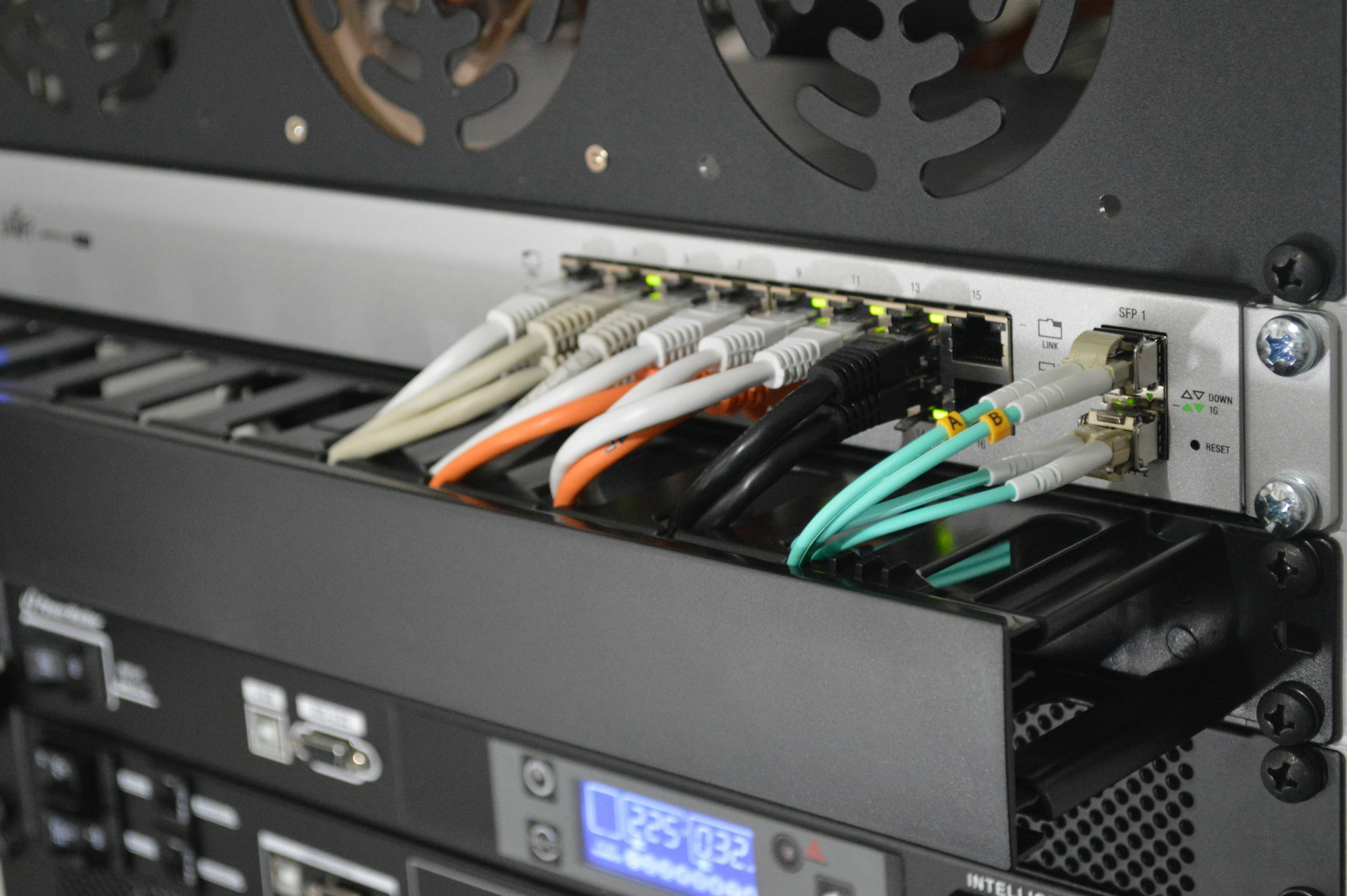
Router Security Fundamentals:
- Default Password Changes: Change default router admin passwords immediately
- Firmware Updates: Keep router firmware updated for security patches
- Strong Wi-Fi Passwords: Use WPA3 encryption with complex passwords
- Network Name: Avoid using personal information in your Wi-Fi network name
- Guest Networks: Set up separate networks for visitors and smart devices
- Access Control: Disable WPS and use MAC address filtering if needed
Wi-Fi Security Best Practices:
- Encryption Standards: Use WPA3 (or WPA2 if WPA3 isn’t available)
- Hidden Networks: Consider hiding your network name (SSID) from public view
- Range Limitation: Position routers to minimize signal bleeding outside your property
- Regular Monitoring: Check connected devices regularly for unknown connections
- Bandwidth Monitoring: Watch for unusual data usage that might indicate compromise
Public Wi-Fi Safety:
- Avoid Sensitive Activities: Don’t bank, shop, or access sensitive accounts on public Wi-Fi
- VPN Usage: Use a Virtual Private Network (VPN) when connecting to public networks
- Network Verification: Confirm network names with staff before connecting
- Automatic Connection: Disable automatic connection to open Wi-Fi networks
- Hotspot Creation: Use your phone’s hotspot instead of public Wi-Fi when possible
- HTTPS Websites: Only visit encrypted websites (https://) on public networks
Smart Home Device Security
IoT Device Protection:
- Default Credentials: Change all default usernames and passwords immediately
- Network Segmentation: Put smart devices on separate guest networks
- Regular Updates: Keep device firmware current (enable automatic updates when available)
- Unnecessary Features: Disable features you don’t use (microphones, cameras)
- Privacy Settings: Review and adjust privacy settings on all smart devices
- Manufacturer Reputation: Research device manufacturers’ security track records
Smart Device Categories and Risks:
- Smart Speakers: Voice assistants that might always be listening
- Security Cameras: Devices that could be hacked to spy on your home
- Smart TVs: Devices that might collect viewing habits and personal data
- Connected Appliances: Refrigerators, thermostats, and other appliances with internet connections
- Smart Doorbells: Devices that record video and audio of visitors
- Home Automation: Systems that control lights, locks, and security systems
Identity Protection and Monitoring
Preventing Identity Theft

Personal Information Safeguarding:
- Document Security: Store important documents in secure, locked locations
- Shredding: Destroy documents containing personal information before disposal
- Mail Protection: Use locked mailboxes and collect mail promptly
- Social Media Caution: Limit personal information shared on social platforms
- Phone Verification: Be skeptical of unsolicited calls requesting personal information
- In-Person Vigilance: Be aware of who might be listening when sharing information publicly
Credit Monitoring and Protection:
- Credit Reports: Check your credit reports from all three bureaus annually
- Credit Monitoring Services: Consider services that alert you to changes in your credit
- Credit Freezes: Freeze your credit reports to prevent unauthorized account openings
- Fraud Alerts: Place fraud alerts on your credit files if you suspect identity theft
- Account Monitoring: Regularly review all financial account statements
- Identity Theft Insurance: Consider insurance that covers identity theft recovery costs
Recovery Planning:
- Important Contacts: Know who to call if you discover identity theft (banks, credit bureaus, FTC)
- Documentation: Keep records of all accounts, financial institutions, and insurance policies
- Emergency Procedures: Have a plan for quickly responding to identity theft
- Family Education: Ensure family members know how to protect themselves and what to do if compromised
- Professional Help: Know when to seek help from identity theft recovery services
Financial Account Security
Banking Security Measures:
- Account Alerts: Set up text or email alerts for all account activity
- Regular Monitoring: Check accounts frequently, not just monthly statements
- Secure Access: Use only official bank websites and mobile apps
- Transaction Verification: Verify all transactions and report unauthorized activity immediately
- Contact Information: Keep bank contact information easily accessible
- Multiple Accounts: Don’t keep all money in a single account or institution
Credit Card Protection:
- Limited Information: Never give credit card information over the phone unless you initiated the call
- Secure Storage: Don’t store credit card information in browsers or apps unless necessary
- Regular Monitoring: Check credit card statements and online accounts frequently
- Spending Notifications: Enable real-time spending notifications
- Travel Notifications: Inform credit card companies of travel plans
- Replacement Preparation: Keep backup payment methods available
Family Cybersecurity: Protecting Everyone
Teaching Children About Online Safety

Age-Appropriate Cybersecurity Education:
- Young Children (5-8): Basic concepts about not talking to strangers online
- Elementary Age (9-12): Understanding privacy, not sharing personal information
- Middle School (13-15): Recognizing cyberbullying, scams, and inappropriate content
- High School (16-18): Advanced concepts like digital footprints and online reputation
Family Cybersecurity Rules:
- Open Communication: Create an environment where children feel safe reporting problems
- Shared Devices: Keep computers and tablets in common areas
- Time Limits: Set appropriate screen time and internet usage boundaries
- Content Filtering: Use parental controls and filtering software appropriate for each child’s age
- Social Media Guidelines: Establish rules for social media use and friend acceptance
- Regular Check-ins: Have ongoing conversations about online experiences
Parental Control Tools:
- Router-Level Filtering: Control internet access for all devices on your network
- Device-Specific Controls: Use built-in parental controls on tablets, phones, and gaming systems
- Third-Party Software: Consider comprehensive parental control solutions
- App Restrictions: Control which apps can be downloaded and used
- Time Management: Set specific times when internet access is allowed
- Monitoring Tools: Balance safety with privacy as children mature
Protecting Elderly Family Members
Common Scams Targeting Seniors:
- Medicare/Healthcare Scams: False offers for medical services or insurance
- Social Security Fraud: Impersonators claiming Social Security benefits are at risk
- Grandparent Scams: Criminals pretending to be grandchildren in trouble
- Tech Support Scams: Fake calls about computer problems requiring immediate payment
- Romance Scams: Building fake relationships to eventually request money
- Charity Fraud: Fake charities, especially after disasters or during holidays
Senior-Specific Protection Strategies:
- Simplified Security: Focus on essential protections without overwhelming complexity
- Family Support: Involve trusted family members in important online activities
- Education Resources: Use senior-focused cybersecurity education materials
- Technology Training: Provide patient, repeated training on security practices
- Emergency Contacts: Ensure seniors have quick access to family and financial institution contacts
- Regular Check-ins: Family members should regularly discuss online experiences and concerns
Incident Response: What to Do When Things Go Wrong
Recognizing a Security Breach

Signs Your Security May Be Compromised:
- Unusual Account Activity: Transactions, messages, or changes you didn’t make
- Slow Device Performance: Computers or phones running slower than usual
- Unexpected Pop-ups: Especially warnings about viruses or security threats
- Password Problems: Passwords that no longer work or have been changed
- Unfamiliar Software: Programs or apps you didn’t install
- Network Issues: Internet connectivity problems or unusual data usage
Immediate Response Steps:
- Disconnect: Temporarily disconnect affected devices from the internet
- Change Passwords: Update passwords for all important accounts
- Contact Financial Institutions: Call banks and credit card companies immediately
- Document Everything: Take screenshots and keep records of all suspicious activity
- Run Security Scans: Use antivirus software to scan all devices
- Contact Authorities: Report serious incidents to police and relevant agencies
Recovery and Prevention
Recovery Planning:
- Data Restoration: Use clean backups to restore important files
- Account Recovery: Work with service providers to regain access to compromised accounts
- Identity Monitoring: Increase monitoring of credit reports and financial accounts
- Professional Help: Consider hiring cybersecurity professionals for serious breaches
- Insurance Claims: Contact insurance providers if you have cybersecurity coverage
- Family Notification: Inform family members who might be affected
Prevention Improvements:
- Security Audit: Review and improve all security measures
- Education Update: Learn about the specific attack that affected you
- System Hardening: Implement additional security measures
- Backup Verification: Ensure backup systems are working and secure
- Monitoring Enhancement: Increase monitoring of accounts and devices
- Regular Reviews: Schedule periodic security reviews to prevent future incidents
Building Long-term Cybersecurity Habits
Creating a Personal Security Plan

Monthly Security Tasks:
- Password Review: Check and update passwords for important accounts
- Software Updates: Ensure all devices and software are current
- Account Monitoring: Review financial and important account statements
- Backup Verification: Confirm backups are working and data is protected
- Family Check-in: Discuss cybersecurity with family members
- News Review: Stay informed about new threats and security best practices
Quarterly Security Assessment:
- Full Security Audit: Comprehensive review of all security measures
- Privacy Settings: Review and update privacy settings on all accounts
- Device Cleanup: Remove unnecessary software and files
- Emergency Plan Update: Review and update incident response procedures
- Contact Information: Verify emergency contact information is current
- Training Update: Learn about new security tools and techniques
Annual Security Planning:
- Comprehensive Review: Evaluate overall security posture and effectiveness
- Goal Setting: Set cybersecurity improvement goals for the coming year
- Insurance Review: Assess cybersecurity insurance needs and coverage
- Professional Consultation: Consider getting professional security assessment
- Technology Upgrade: Plan for necessary hardware and software upgrades
- Family Training: Provide updated cybersecurity training for all family members
Staying Informed About Cybersecurity
Reliable Information Sources:
- Government Resources: CISA.gov, FBI.gov cybersecurity sections
- Industry Organizations: Sans.org, CERT.org for technical information
- Technology Companies: Security blogs from Microsoft, Google, Apple
- Cybersecurity News: Krebs on Security, Dark Reading, Cybersecurity & Infrastructure Security Agency
- Educational Institutions: University cybersecurity departments and research centers
- Professional Organizations: ISC2, ISACA for cybersecurity professionals
Continuous Learning Approach:
- Regular Reading: Set aside time weekly to read about cybersecurity developments
- Online Courses: Take advantage of free cybersecurity courses and webinars
- Community Participation: Join local cybersecurity meetups or online communities
- Practice Application: Regularly practice new security techniques and tools
- Peer Learning: Learn from friends, family, and colleagues’ experiences
- Professional Development: Consider formal cybersecurity training or certification
Conclusion: Your Cybersecurity Journey
Cybersecurity is not a destination but a continuous journey of learning, adapting, and staying vigilant in an ever-evolving digital landscape. The threats we face today will continue to evolve, but by building strong foundational habits and maintaining awareness, you can protect yourself, your family, and your digital life.
Key Takeaways for Your Cybersecurity Success:
- Start Where You Are: Don’t feel overwhelmed—begin with the basics and build gradually
- Consistency Matters: Regular security habits are more effective than perfect one-time setups
- Education is Ongoing: Cybersecurity is a continuous learning process
- Community Helps: Share knowledge and learn from others’ experiences
- Technology Serves You: Use security tools to make protection easier, not harder
- Trust Your Instincts: If something feels wrong online, it probably is
Remember:
- Security doesn’t have to be complicated to be effective
- Small, consistent actions provide significant protection
- Everyone makes mistakes—learn from them and move forward
- Family and community security makes everyone safer
- Your cybersecurity awareness helps protect others too
Your Next Steps:
- Implement one new security practice this week
- Have a cybersecurity conversation with family or friends
- Set up password management if you haven’t already
- Enable two-factor authentication on your most important accounts
- Create a simple incident response plan for your household
Whether you’re protecting your first email account or securing a multi-generational family’s digital presence, remember that cybersecurity is ultimately about preserving what matters most to you—your identity, your privacy, your financial security, and your peace of mind.
The digital world offers incredible opportunities for connection, learning, and growth. By approaching it with knowledge, preparation, and healthy caution, you can enjoy all the benefits of our connected world while keeping yourself and your loved ones safe from digital threats.
Your cybersecurity journey starts with a single step—taking responsibility for your digital safety. From there, each security practice you adopt, each family member you educate, and each threat you successfully avoid makes the entire digital community a little bit safer for everyone.
Ready to strengthen your cybersecurity defenses? Contact LLL Inc. for personalized cybersecurity training, family safety workshops, and comprehensive security assessments designed for individuals and families of all technical skill levels.