WordPress migration
How to Migrate from WordPress to EmDash
Check what can move, back up WordPress, import into a test EmDash site, then verify images, URLs and essential features before switching. Start with the order below or use the free export-file check.
Follow the migration orderImport in the adminCheck before switchingAuto-link ACF images and posts
The official documentation changes over time. Check the linked pages for the latest before you start.
On this page
- What to prepare before you migrate
- An example of a pre-migration ledger
- Free pre-move check
- Choosing between WXR and the Exporter
- What moves, and what gets rebuilt
- Import through the EmDash admin
- Pre-cutover checklist
- Where to set up redirects for old URLs
- Which LLL URL audit plugin to use when
- Worked example: find redirect chains before switching
- Checks before and after publishing, and old URLs
- When to stop the cutover, and freezing updates and reconciling differences
- Before and after the DNS switch, and a checklist for going back
- How we work: protect first, then switch
- Connect images and related posts automatically
- Moving ACF data through the admin screens (measured)
- Measured: a 5-item import
- Added measurement (2026-11-17): images, Japanese URLs, custom fields
- Managed WordPress-to-EmDash Migration
- FAQ
Short answer, and the order to follow
Whether to move is decided less by whether posts can move than by whether you can replace the features you cannot stop: forms, payments, membership and bookings. If WordPress is working for you, or a WordPress-only plugin is essential, staying where you are is also reasonable.
If you decide to move, this order keeps you from getting lost. Each step links to the section with the details.
- Prepare: backups and permissions
Have backups of the WordPress database and images, and an EmDash administrator account. - Ledger: old URLs and features
List old URLs, menus, forms and plugins, one item per line. It is the baseline you reconcile against before and after cutover. - Check: count the WXR for free
Count the exported file inside this browser. It is not sent anywhere. - Method: WXR or Exporter
Choose by whether exporting from the admin is enough, or you can install a plugin on WordPress. If you need custom fields to move, use the Exporter. - Import: into a staging EmDash
Import into a staging EmDash, not production. The table shows where to act and what success looks like. - Reconcile: against the original
Compare counts, images, old URLs and protected pages with your ledger. - Cut over: after the stop conditions
If any one applies, stop the cutover. The DNS switch and how to go back are in the sections that follow.
If you use ACF, the section “Moving ACF data through the admin screens” has the clicks we actually made and a table of the results.
If you can install the EmDash Exporter on a WordPress site you control, use the Exporter; if exporting from the WordPress admin is enough, use WXR. Either way, start with a backup and a ledger of URLs, menus and post types. Switch only after checking on staging and reconciling where each old URL goes.
You do not load the WordPress database (SQL) into EmDash as it is. The standard way is to bring the content that maps across (posts, pages, menus, authors and so on) into EmDash’s new structure with WXR or the Exporter. Plugin-owned tables are designed individually.
Published by LLL (Live Laugh Love). First edition: 2026-11-14. The official documentation changes over time, so check the linked sources before you act.
What to prepare before you migrate
- A backup of the WordPress database and
wp-content/uploads - An EmDash site with storage configured, if you will copy media
- An EmDash administrator account with the
import:executepermission - Either a complete WXR (WordPress export) file, or the EmDash Exporter plugin installed on WordPress
- A record of the permalink structure (how your post URLs are built), the canonical origin (the site’s official address, down to whether it uses
www), redirects (old URL to new URL), menus, active post types and taxonomies (the categories and tags that classify posts), and any plugin-owned fields you must keep
An example of a pre-migration ledger
The ledger is what you reconcile against before and after cutover. A spreadsheet works, or a one-line-per-item list like this.
- URLs: old URL / type (post, page, category, attachment) / new URL / redirect needed? / date checked.
- Permalinks and canonical origin: the current permalink structure,
https://versuswww, and trailing-slash handling. - Menus and post types: where each menu is used, custom post type and taxonomy names, and plugin-owned fields you must keep.
- Existing redirects: redirects already set up on WordPress (old → new) and where they are defined.
- Media: where images are stored, and whether post bodies contain absolute image URLs.
- Page priority: mark pages with search traffic or inquiries, and check them first after cutover.
Free pre-move check
Start in the WordPress admin: open Tools → Export, select All content, and download the XML (WXR) file. It includes posts, pages, menus, authors and attachment URLs. It does not include the image files, user passwords, or plugin-owned database tables themselves. It contains author details, so keep it with the same care as a database backup.
Check your WXR file in this browser
Choose an exported WXR (.xml) file and this page counts posts, pages, their statuses and the remaining items, entirely inside the page. The file is not uploaded or stored, and its name, contents and result are not passed to analytics.
This check needs JavaScript. Without it you can still export the WXR using the steps above and work through the table below.
This is for a WXR (.xml, up to 50 MB) exported from WordPress under Tools → Export. SQL, ZIP and other formats are not accepted. Body text, titles, personal names, e-mail addresses and passwords are kept out of the result and the CSV.
After the check: save the inventory CSV, keep the original WordPress site, and try the import on a staging EmDash site. This check does not migrate content or configure redirects.
- Import on staging and open one post
Compare counts and statuses with your CSV inventory, then check the body, images and URL. - If URLs change, review the redirect plan with one plugin
Try the LLL Redirect Map Review exercise, with installation steps and a CSV example that reveals a chain. If you do not need a redirect plan, you do not need this plugin. - Choose the first plugin for another problem
Compare tasks such as contact submissions or duplicate URLs with the result to check after installing.
These CSV files are different: the five-column file from this check is an inventory of old URLs and statuses. Do not paste it directly into Redirect Map Review. Decide the new URLs first, then make a two-column source,target redirect plan, as shown in the exercise.
The free check tells you the counts and statuses of posts and pages in the WXR, and the old URLs. Forms, membership, e-commerce and plugin-owned databases are not in a WXR, so inventory them separately in your ledger. The check alone does not decide what can move or what must be rebuilt.
| Area | You can judge it yourself (free information) | Scoped in the pack |
|---|---|---|
| Posts, pages, menus, authors | What a WXR export covers (above), and counts by type and status, recorded in your ledger. | The import, reconciling counts, and rebuilding body content such as blocks WordPress rendered on the server. |
| The WordPress database (DB) | To restore the same WordPress, use a backup of the database plus the files and settings. For a move to EmDash, you do not convert and load the whole database; you bring the content that maps across into EmDash’s new structure with WXR or the Exporter. The official docs describe no way to load a WordPress SQL backup into EmDash. | Plugin-owned tables are designed individually through ETL (extracting the data, reshaping it and loading it again); the same SQL cannot be restored as it is. Choosing the target database (SQLite, Cloudflare D1, PostgreSQL and so on) and sorting what moves by hand or through the API. Who does what, and what is feasible, is fixed in the quote. |
| EmDash site transfer (site package) | An official EmDash feature for moving an EmDash site to another EmDash (even on a different kind of database). It is not for moving from WordPress. | Not used for a WordPress migration. It is an option when you later move the environment after you have moved to EmDash. |
| Image and file contents | WXR holds only the URLs. Files are fetched while the source site is reachable at a public address; those that cannot be reached fail individually. | Handling the files that failed to download, and configuring storage. |
| URLs and redirects | You can build the old-URL ledger and review a redirect CSV yourself (LLL Redirect Map Review). | Designing and setting up the redirects, and checking old URLs on staging. |
| Domain, DNS, TLS/SSL | Decide whether the domain stays the same or changes, and confirm who holds DNS and admin access. Per the official guide, the new domain must already serve the site over https before you switch the Site URL. | Planning the cutover steps and checks. Who does what, and what is feasible, is fixed in the quote. |
| Email (MX and TXT) | To keep email working, do not remove the MX and TXT records (SPF, DKIM, DMARC), and record their current values. Sender authentication is set at your email provider (official). | Checking the sending-domain setup and verifying that mail arrives. |
| Administrators, editors, members | Record the list of users and roles. Passwords do not move. In EmDash people sign in again through an invitation and passkeys (the default) or a sign-in provider. | Member pages and login features are judged individually after reviewing what you already run. |
| Forms and notifications | Write the kinds of forms and where submissions go in your ledger. LLL Contact Inbox keeps messages in an inbox inside your own EmDash site and sends no email. | Designing notification routes, and rebuilding complex forms. |
| API keys, webhooks, cron jobs | List what you use. Plan to issue new keys and keep them in a secret store, and do not write the values in the ledger (per the official secrets guide). | Re-pointing integrations, and verifying that they work. |
| Plugin-owned tables, e-commerce, bookings | Record the names of the features you use and how much data each holds. | We review your existing assets first, then decide feasibility through individual design. We do not promise that it can move. |
Verification before cutover: open old URLs on staging and confirm they reach the expected new URLs, then move on to the DNS and TLS switch. Sync: in our measured run (5 items), re-importing the same file skipped slugs (the end part of a URL; “about” in /about/) that already existed. Posts you edit in WordPress before the cutover are not overwritten automatically, so plan to carry those differences over by hand and decide when writes to WordPress stop. Rollback: keep the original WordPress site and the backup until the new site has run in production and you no longer need to go back.
Choosing between WXR and the Exporter
- Choose WXR when you cannot or do not want to install a plugin on the server. In WordPress open Tools → Export, select All content and download the XML. It includes posts, pages, custom post types, taxonomy terms, menus, reusable blocks, authors and attachment URLs, but not the image files themselves, so you bring images in as a separate step.
- Choose the Exporter when you can install it on a WordPress site you control. It also brings authenticated content, site settings, SEO fields, taxonomies and media metadata. If you need comments, menus, the logo or the favicon, confirm version 1.2.0 or later.
- Custom fields: WXR does not copy arbitrary postmeta (the extra values attached to each post). To move them, use the Exporter. In the admin import, the Review screen proposes the missing fields and creates them, and uses an existing field with the same name as “Exists” (the ACF run is under “Moving ACF data through the admin screens”). If you want to choose the types yourself, or import through the API, create fields with the same names and types on the EmDash side first. In our 2026-11-17 API run, of the 5 fields we tried, WXR brought none (and none of the 3 on events), while the Exporter brought all 5 that had fields created first (and all 3 on events); see “Added measurement”. An item with no matching field does not arrive, even with the Exporter.
- Password-protected posts: protection is not kept (a protected post arrives as a draft with WXR, and unprotected with the Exporter), so check on staging.
If you enter only a site URL, EmDash probes the public WordPress REST API and cannot perform a direct import.
What moves, and what gets rebuilt
| Item | Handling | Notes |
|---|---|---|
| Posts, pages, custom post types | Moves over | Imported from a WXR export or via the EmDash Exporter. |
| Categories, tags, authors | Moves over | Imported as taxonomies and author data. |
| Images and media | Move after checking | WXR does not contain the image files. Media download and URL rewriting is a separate step. |
| Menus, comments, SEO fields | Move after checking | Some items need Exporter 1.2.0 or later; we check the version. |
| Theme | Rebuild | WordPress themes do not run as-is. They are rebuilt as an EmDash theme. |
| Gutenberg dynamic blocks, shortcodes | Rebuild | Anything relying on rendering code is rebuilt as substitute components. |
| Forms | Rebuild | Redesigned, including destinations, notifications and spam protection. |
| URLs, redirects, SEO | Protect at cutover | Permalinks, canonical and sitemap go into a ledger and are reconciled before and after cutover. |
Import through the EmDash admin
The table below follows the flow we actually operated in the EmDash 1.5.0 admin (English UI) on 2026-11-17 (Connect → Review → Create Schema & Import → Media → Import Complete), checked against the official documentation (Migrate from WordPress). We pressed the buttons and ran the import to the end (a synthetic site with the real ACF plugin; the result is in “Moving ACF data through the admin screens” above). Words based only on the official documentation are marked as such.
A collection is a box that holds one kind of content, such as posts or pages. A field is an input within one entry, such as the title or the body.
| Step and where | What to do | Sign of success | If it does not appear |
|---|---|---|---|
| 1. Connect: admin sidebar “Import” → “Import from WordPress” (address: /_emdash/admin/import/wordpress) | Upload the WXR file with Browse Files. With the Exporter (1.2.0 or later), paste the migration key generated under Tools → EmDash Migration in WordPress into the “Migration key” field and select Connect (confirmed on the real screen). The “Enter your WordPress site URL” field and Check Site only probe the public REST API and cannot import directly. On first use a “Welcome to EmDash” dialog appears (Get Started or Close). | The step bar moves to “Review”, and the site name and your WordPress post types are listed. | The XML cannot be parsed: export it again from Tools → Export (do not edit the XML). “Couldn’t detect WordPress” with only a URL: an address that works only on your own computer is not reachable; see the FAQ on importing from a local WordPress. |
| 2. Review: Content to Import | Look at the switch for each post type (post, page, event and so on) and, inside “post (4 items → posts)”, the “Required fields”. “Exists” is a field that is already there; “Will create” is one the import will create. The badge on the right is “Add fields” (added to an existing collection) or “New collection”. Under “Settings”, choose the site title, logo and SEO switches (with the Exporter). | Every post type in your ledger is listed, and the ACF fields appear under “Will create” with types. “What will happen when you import” below shows the collections and counts. | No ACF fields appear: check that the WordPress field group actually has fields registered (in our run, no fields were proposed while the group had none). Menus or comments did not arrive: an Exporter older than 1.2.0 finishes without them and does not report them as missing. A row is marked incompatible: an existing field has the same slug but a different type; reconcile it under “Content Types”, then retry. |
| 3. Create Schema & Import → Map Authors | Select “Create Schema & Import”. EmDash creates the missing collections and fields. On “Map Authors”, map each WordPress author to an EmDash user (“Leave unassigned” is fine). Select “Continue Import”. | You move on to the Media step. An unmapped author stays as a guest byline. | It stopped partway: do not delete or redirect the WordPress origin. Compare collection counts and inspect the errors, then retry (existing slugs are skipped). |
| 4. Media: Import Media Files | The screen shows the number of images, such as “Your WordPress export contains 4 media files.” Select “Import Media” (or “Skip Media Import” to do it later). EmDash downloads and stores the images and rewrites the URLs in the content. | Import Complete shows “4 media files imported” and the number of rewritten URLs. | Failures remain: files behind authentication, deleted files, and redirects to private addresses fail individually. Check that the source site is reachable at a public address, then see the image item in the pre-cutover checklist. |
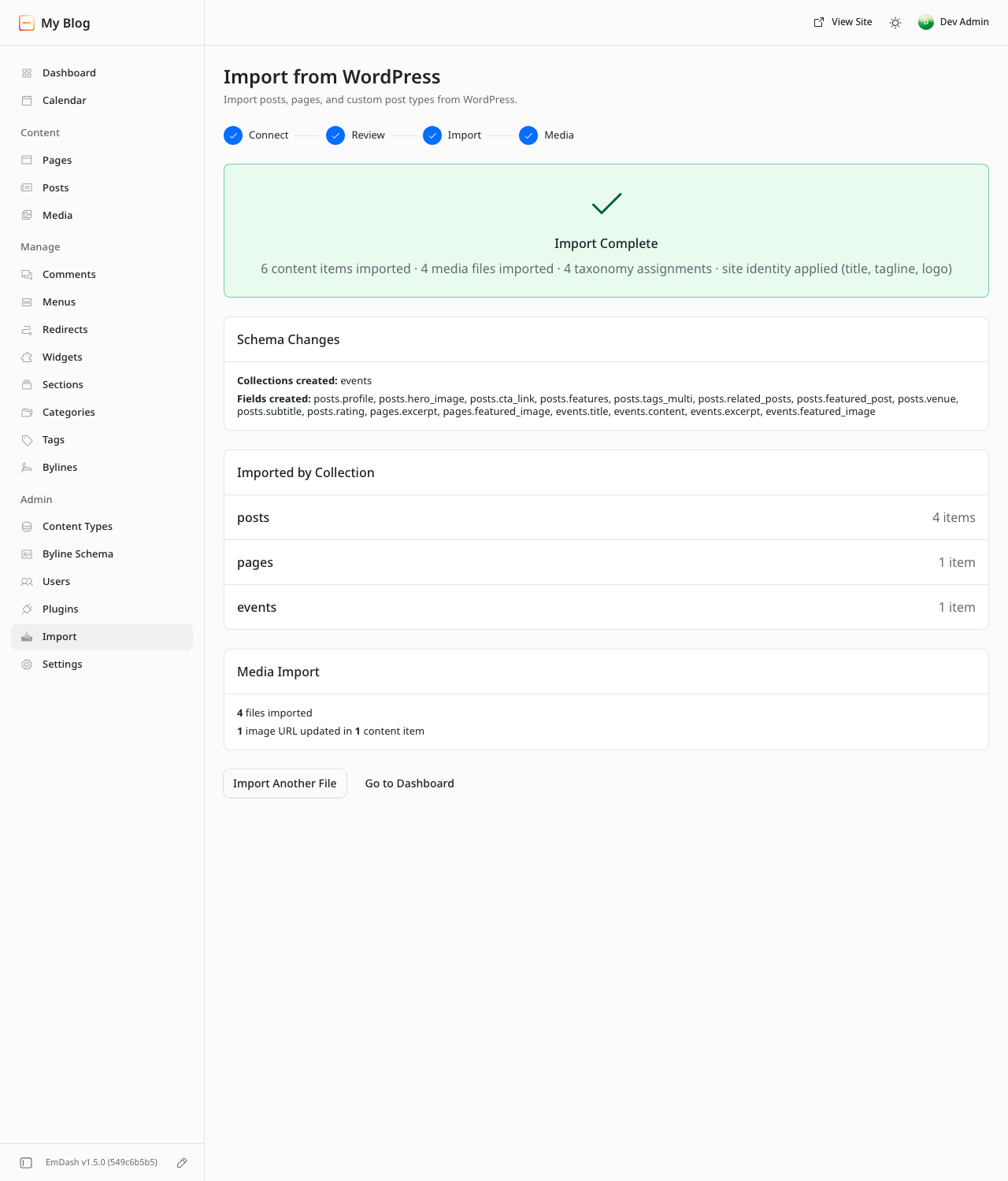
| 5. Import Complete | Read “Schema Changes” (collections and fields created), “Imported by Collection” (counts) and “Media Import”. The buttons “Import Another File” and “Go to Dashboard” appear. Password-protected posts arrive as drafts. | The counts match your ledger. In our run: “6 content items imported” (posts 4, pages 1, events 1). That is what this import brought in, not the post count of the whole EmDash site, which already held sample posts. | They do not match: reconcile against the ledger, then see the pre-cutover checklist and the stop conditions. |
| 6. The public URL of the staging site | Open a representative post while logged out. | Counts match the ledger and images display from EmDash URLs. Drafts are not visible. | They do not match: see the pre-cutover checklist and the stop conditions. |
Range checked: operating the admin on 2026-11-17 (synthetic site, the real ACF free version 6.8.11, Exporter 1.2.0, EmDash 1.5.0), we ran from Connect to Import Complete and confirmed each screen. The migration key was also generated on screen in WordPress. Editing and saving the ACF fields and showing them on the public page are not part of this table. The earlier API runs (2026-11-15 and 11-17) have different dates and methods, and are kept as they were below.
WXR does not copy arbitrary postmeta (custom fields); in the added run none of the 5 fields we tried arrived, and none of the 3 on events. To move them, use the Exporter and create fields with the same names and types on the EmDash side first (in the added run, all 5 arrived, and all 3 on events). EmDash has no per-post passwords: a password-protected post arrives as a draft with WXR, and the Exporter does not send passwords, so a published protected post arrives published without protection. Test in a restricted staging environment and restore access controls for protected pages before cutting over.
Pre-cutover checklist
Use this checklist to compare the staging import with the original WordPress site. It follows EmDash’s documented conversion rules.
- Posts: count entries by post type and status in WordPress and in EmDash, and reconcile them. WordPress pending and private arrive as drafts, so read each draft before publishing.
- Publication dates: imported drafts keep their source date. Publishing a draft with an old save date for the first time backdates its date-based permalink too, so check the date before you publish.
- Body content: open representative Gutenberg, Classic Editor, shortcode and page-builder pages. Blocks WordPress renders on the server, such as Latest Posts, arrive as empty HTML blocks and show nothing on the site. Check the original in the editor’s HTML tab, then rebuild or remove it.
- Images and media: check that featured images and inline images load from EmDash URLs. Files can only be fetched while the source site is reachable at a public address. Files behind authentication, removed files and redirects to private addresses fail individually and stay in the media error list.
- Authors, categories, tags and custom taxonomies: a WXR custom taxonomy without a matching EmDash definition is reported as missing and its assignments are skipped.
- Menus, comments, site settings and SEO fields: test the menus. After an Exporter import, also test comments, site title and logo, and SEO fields.
- Old URLs: crawl the old public URLs and prepare a redirect for every route that changes. Open them in a browser to confirm each reaches the same content and that redirects do not chain through several hops.
- Password-protected pages: EmDash has no per-post passwords. WXR brings them in as drafts and lists them on the Import Complete screen. The Exporter does not send passwords, so a published protected post arrives as a published, unprotected post. Confirm logged-out visitors cannot see drafts, and that you restored access controls on pages that need them, before cutover.
- An interrupted import: before deleting or redirecting the WordPress origin, compare collection counts, inspect errors, finish media downloads and verify the rewritten links.
- Cloudflare bot protection: if a challenge page answers the Exporter’s requests, the import stops. The official docs show a rule that lets them through for the duration of the migration.
- The original site and the backup: keep WordPress and the backup until the new site has run in production and rollback is no longer needed.
Where to set up redirects for old URLs
Manage the rules under “Redirects” in the EmDash admin (the official SEO guide). A rule sends an old path to a new one with 301, 302, 307 or 308, or answers with 410 Gone and similar statuses. Source paths accept named segments such as /old/[slug] and catch-all segments such as /old-blog/[...path].
In our measured run (5 items), the WordPress URLs were not stored in EmDash and the redirect list stayed empty. For old URLs that change, you create the rules yourself from the “new URL” column of your ledger. After cutover, the “404 Errors” tab on the same page lists the paths visitors could not reach, most frequent first, and you can add a redirect from there.
This section follows the official documentation. In the added run of 2026-11-17 we registered 3 old-URL redirects through the admin API (POST /_emdash/api/redirects) and confirmed that the old URLs reached the new pages through a 301 and ended at 200. The Redirects screen in the admin has a New Redirect button and the tabs Redirects and 404 Errors, which we confirmed on screen. The New Redirect dialog has Source path, Destination path, Status code, Group and Enabled, with Cancel and Create; pressing Create is untested. Setting redirects in a hosting or CDN service is not covered here.
Which LLL URL audit plugin to use when
Both only read data stored in EmDash and change nothing. Neither crawls an external live site, so also check where old URLs actually go in a browser or by another means.
- LLL URL Migration Audit: before changing a domain or path, preview how stored absolute URLs would change. It has English and Japanese reports and CSV text export. Use it when building the “new URL” column of the ledger.
- LLL Public URL Collision Audit: find distinct published records that resolve to the exact same public URL, across collections, run manually. Use it after the import and before cutover.
The primary sources are the plugin pages on the official registry; they are the authority on behavior and limits.
Worked example: find redirect chains before switching
Find LLL Redirect Map Review in the EmDash Registry and install it. Open it in the admin, paste the three lines below and run the review. These three lines are an illustration of how a chain is found, not redirects from a real site. Here /old reaches /guide via /middle. If you want a single hop, change the /old target to /guide and run the review again.
source,target
/old,/middle
/middle,/guide
How this differs from what we measured: the CSV above is an example redirect proposal, not redirects from a real site. In a separate test (2026-11-05) we confirmed installing the signed 0.1.0 release from the official Registry and generating Japanese and English reports for 100 synthetic redirect rows. The tool reads the proposed CSV only. To confirm the destinations, set the redirects on a staging site and open each old URL.
WordPress migration post-check
Compare old URL rules, saved media records and ACF values or references in one place.
Selected files are processed only in this browser. Their contents are neither stored nor transmitted.
How to obtain the files
Save the XML from WordPress Tools → Export. An EmDash administrator can save the JSON responses from GET /_emdash/api/redirects and GET /_emdash/api/media. If the media list spans pages, merge every page's data.items into one JSON response. Never enter credentials on this page. EmDash REST API
Developer check: stored ACF values, images and relationships
Pair an ACF source ledger with a read-only SQLite snapshot of its migration destination. A regular ACF settings export alone will not work. Values use ACF’s formatted representation. Image matching uses stored name and size; relationship matching uses stored targets and order. Nested and ACF PRO automatic migration is out of scope.
wp eval-file collect-wp-acf.php > source-acf.json
python3 collect-emdash-acf.py --db /path/to/emdash.db --source source-acf.json > target-acf.jsonComparison results
This is a comparison of saved rules, filenames, and fields. Live HTTP responses, image bytes, public pages and cutover readiness are unverified. Matches describe only the supplied files.
| Check | Item | Result in supplied files | Details |
|---|
Checks before and after publishing, and old URLs
- Before publishing (staging)
Compare the post count, representative pages, broken links, images, menus and SEO titles and descriptions against the ledger. Do it in a restricted environment and restore access controls on pages that need them. - Before publishing (URLs)
For each old URL in the ledger, decide whether the new URL returns the same content or needs a redirect. Also check that no two entries share one public URL. - Right after cutover
Open the main pages and the pages you marked, at their public URLs. Open old URLs and confirm they reach the new ones, and that redirects do not chain through several hops. - The days after
Confirm the sitemap points at the new URLs and that the original WordPress site stays until verification is finished. Also look at the error reports in your search engine’s webmaster tools.
When to stop the cutover, and freezing updates and reconciling differences
Whether to cut over is not decided by “did the posts move?” alone. If any of the following is unconfirmed or has a problem, stop the cutover and fix it first.
- Exposed protected content: posts that were password-protected, or drafts and private pages, are visible to visitors who are not logged in.
- Failed key images: images on the top page or main pages do not load from EmDash URLs, or important files remain in the media error list.
- Replacements for payments, forms and membership are unconfirmed: you have prepared replacements for payments, contact and application forms, and member sign-in, but have not tested sending, receiving and notifications.
- Where old URLs land is unconfirmed: the old URLs of the pages you marked in the ledger do not reach the new URLs, or redirects chain through several hops.
- Administrators cannot get in: you have not confirmed that an administrator can sign in to the admin at the new address (follow the official change-domain guide for the Site URL and temporary address settings).
- No way back: you cannot keep the original WordPress site and the backup until the new site has run without problems.
- Decide the freeze
Set the date and time of the cutover, and from that moment stop writes to WordPress (post edits, comments, forms, orders) or prepare a substitute for receiving them. If you cannot stop them, decide on one place where they are received. - Reconcile differences
In our measured run, re-importing the same file skipped slugs that already existed and did not overwrite updates. Compare the list for posts changed in WordPress after the last import, and carry them over by hand. - Match the counts
Apply the official status conversion to the WordPress counts (private, pending and trashed items become drafts, for example; a password-protected post becomes a draft with WXR and arrives unprotected with the Exporter) to get the expected counts after import, and match them with the EmDash counts. Do not move on to the DNS switch until they match.
Before and after the DNS switch, and a checklist for going back
“Switching DNS back restores everything” is not true. DNS only decides where visitors go; data the new site received after the cutover does not reach the old site when you point back.
- Before the switch
Note the current DNS values (A, CNAME, MX, TXT and so on). Leave the email MX and TXT records (SPF, DKIM, DMARC) unchanged unless you are changing your email provider. Change only the records that point visitors to the site. First confirm that the new destination has an https certificate and returns the same site, and that an administrator can sign in at the new address. Follow the official change-domain guide for the Site URL and temporary address settings (link below). - Just before the switch
Start the freeze and carry over the last differences. Decide on one place where forms, payments and email are delivered, old or new. - Right after the switch
Open the top page, the pages you marked in the ledger, old URLs, form submission and sign-in at their public URLs. Propagation takes time, and in general both old and new may receive traffic for a while. The sitemap can stay stale for up to 1 hour and robots.txt for up to 1 day (official). Keep the original WordPress site, with updates stopped. - Going back
Return only the site-destination records you changed to the values you noted (do not roll back everything at once, including records you changed for email and so on). Before that, export the orders, inquiries, comments and post updates the new site received, enter them into the old WordPress, and reconcile the counts. Make sure orders and payments are not processed twice and notifications are not sent twice. During propagation, both sites may receive traffic.
This checklist is a list of items to confirm; it does not guarantee a cutover with no downtime, success, or search rankings. The measured run covers only the 5 items above; the DNS switch and going back are not part of it.
Official: Migrate from WordPress (status conversion)Official: Changing domains (change-domain)
How we work: protect first, then switch
- BackupSecure the WordPress database and uploads. The original site stays until verification is done.
- InventoryList permalinks, menus, post types and plugin-owned fields, then sort them.
- Import on stagingImport without touching production; check display, links, images and SEO.
- CutoverConfirm redirects and public URLs, then switch. We reconcile again afterwards.
The original WordPress site stays until the imported site has passed verification.
Connect images and related posts automatically
LLL ACF Reference Migrator is an EmDash extension that connects WordPress ACF images, relationships and post objects to their new images and entries. It keeps the original values and reduces the need to select each image or post again. Try it on a backed-up test site first.
A site administrator or developer first installs the native extension below and rebuilds the site. It is not installed by searching the official Registry. Once installed, the person doing the migration can use the following admin screens. Use an EmDash administrator account with plugins:manage plus schema, import, media and content read/write permissions. This test used an administrator.
- Generate a migration key
Activate the official EmDash Exporter 1.2.0 in WordPress, then open Tools → EmDash Migration → Generate migration key. Freeze WordPress updates during the migration. Paste the key only into the destination’s private admin screen. - Review the source and fields
Open ACF migration in EmDash, enter the Migration key and choose Check source. Review your migration lists the source, content counts and image/post-reference fields. Fields under Outside automatic linking are not counted as successful links. - Import and connect
To include a public section, select Show the connected images and related posts on public pages. Choose Import and auto-link. The extension imports entries and images, then connects them using the exact old-to-new ID maps. It does not guess from similar filenames or titles. - Check the results and public pages
Review Images connected, Post references connected, Unresolved and Conflicts. Open the new image/reference fields in the entry editor, and inspect the public page. Original ACF values remain separately. Follow What to check next for unresolved items and conflicts; do not switch the live site while important items are unresolved. - Recheck, then revoke the key
Recheck connections uses the saved mapping without importing entries or images again. Selections you edited are kept and reported as conflicts. After checking, return to WordPress’s migration screen and choose Revoke key to close the unused connection.
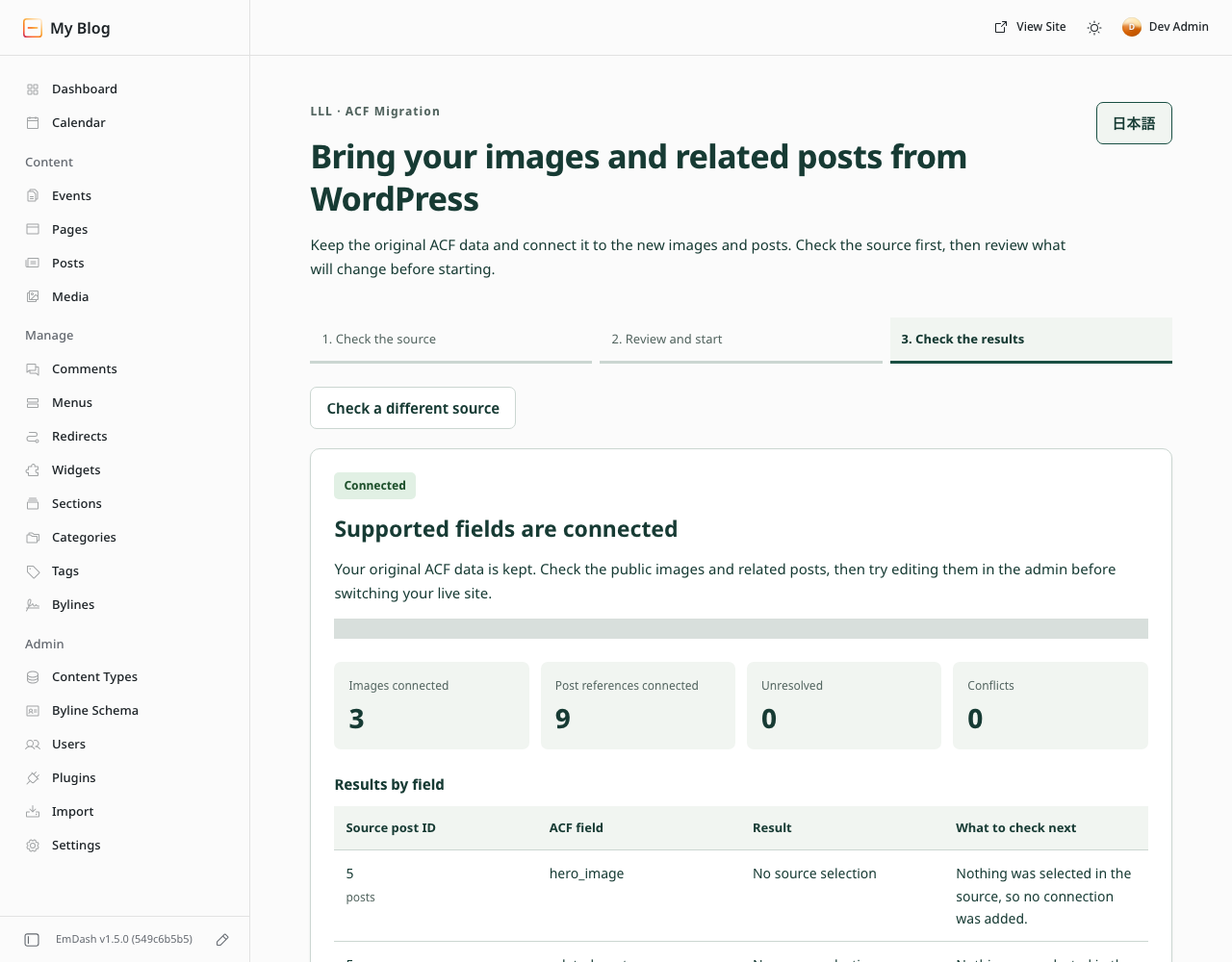
In the 2026-11-17 run, a synthetic site using the real ACF free plugin produced 3 connected image fields and 9 post references through the admin UI, with 0 unresolved items. No image or post was manually re-selected after import. The 9 references include both multiple relationships and single post objects. This was an actual UI test, separate from measuring a human beginner’s completion time or success rate.
The logged-out pages also loaded images from destination URLs, kept related-post order, and omitted draft targets. Three Recheck connections runs kept the result at 3 image fields, 9 post references, 0 unresolved items and 0 conflicts, without multiplying stored entries or references. The test used WordPress 7.1.4, ACF free 6.8.11, Exporter 1.2.0 and EmDash 1.5.0.
Public output adds an image/related-entry section at the end of pages in themes that support EmDash page fragments, including the standard blog theme. It does not recreate the layout or design of the original WordPress theme. Draft and private reference targets are omitted from the public section.
| Scope | Behavior in this version |
|---|---|
| Top-level Image / Relationship / Post Object | ACF fields with simple post-type conditions. Original values remain and new native image/reference fields are created. |
| Nested, PRO and cross-collection references | References inside Groups, Repeater, Flexible Content, Gallery, and a single field targeting several collections are outside automatic linking. |
| URL-format images and missing targets | This version identifies connections by WordPress ID. URL-only values and missing mappings are reported as unresolved, never guessed. |
| Password-protected entries | Import is blocked before it starts when protection is found or cannot be verified. Keep the protection in place and plan a migration that preserves access controls. |
| Size and interrupted operations | Up to 200 content entries, 200 attachments and 100 selections per reference field. The preview also estimates checkpoint size from actual data. An entry request with an unknown outcome is not repeated automatically; restore the test destination from its pre-import backup before starting over. |
| The whole site cutover | Menus, comments, forms, email, DNS and access-control migration are separate tasks. Use the cutover checklist below as well. |
First-time installation for site administrators and developers: EmDash 1.5.x, version 0.1.0, MIT license. Download the tested package and add it to the EmDash project.
Download native extension 0.1.0Ask about setup and migration
Package SHA-256, for checking the downloaded file:
f8a2b50e224b92e7ddd756d91adb32a302151affd036de86818545af499b055dpnpm add ./lll-emdash-acf-reference-migrator-0.1.0.tgzKeep the existing astro.config.mjs settings and add both registrations: acfReferenceMigrator() to EmDash’s plugins and acfReferenceMigratorIntegration() to Astro’s integrations. The example below shows insertion points, not a complete replacement for your configuration. Rebuild/restart the site as usual and confirm that ACF migration appears in the admin. Set Astro’s site and EmDash’s siteUrl to the destination’s actual public URL, then verify that public images and related-entry links point to that destination.
// astro.config.mjs — add to the existing configuration
import { acfReferenceMigrator, acfReferenceMigratorIntegration }
  from 'lll-emdash-acf-reference-migrator';

// Inside integrations: retain all existing integrations and options.
emdash({
  // retain your other EmDash options
  plugins: [/* retain existing plugins here */, acfReferenceMigrator()],
}),
acfReferenceMigratorIntegration(),
Compare the standard Import-only testWhen to stop cutoverInitial setup guide
Moving ACF data through the admin screens (measured)
Go to automatic image and post linking
This section records the earlier test using only the standard Import flow. For automatic image and post linking, use the extension above. The original import and the manual recovery steps are recorded separately here.
Result: from a WordPress site with the real ACF plugin (free version 6.8.11), using only the EmDash admin screens, the 7 top-level ACF fields arrived with their original values (2026-11-17, synthetic data, local development environment). What arrived is “the original value saved as JSON”. It was not rebuilt as EmDash’s native image or reference fields, as theme output, or as an ACF-style input screen.
Prerequisites: the source WordPress is reachable at a public address and you can sign in as an administrator; the destination EmDash is already prepared and you can sign in as an administrator with the import:execute permission. Creating a new server and switching DNS are separate tasks. Import into a test EmDash site first, then check the values, image, related posts and public display of one post that uses ACF.
- Generate a migration key in WordPress
As an administrator, install and activate the EmDash Exporter (1.2.0), open Tools → EmDash Migration and generate a key (in this test the Exporter was installed as preparation, and the key was one generated on screen in the same environment). Treat the key like a password: paste it only into the private admin “Migration key” field in the next step, never into public pages, posts or contact forms. - Open Import in EmDash and paste the key
In the admin sidebar choose Import → Import from WordPress. Paste the key into the “Migration key” field and select Connect. - Check what is missing on Review
Expand “post (4 items → posts)”. Its required fields are listed as “Exists” or “Will create”. The ACF fields Profile, Hero Image, Link, Features, Tags Multi, Related Posts and Featured Post each appeared as “Will create” with type json. Venue, Subtitle and Rating, which were in the source data, were proposed the same way. The badge on each post type is “Add fields” (added to an existing collection) or “New collection” (created new). - Select Create Schema & Import
EmDash creates the missing fields and collections. On the next “Map Authors” screen, map WordPress authors to EmDash users (leaving them on “Leave unassigned” still lets you continue), then select “Continue Import”. - Import images on Media
The “Import Media Files” screen shows the number of images (4 in our run). Select “Import Media”, or “Skip Media Import” to do it later. - Read the counts on Import Complete
It shows “6 content items imported · 4 media files imported · 4 taxonomy assignments” and a list of the fields created. The 6 items are what this import brought in, not the number of posts in the whole EmDash site (sample posts were already there). - Finish by checking the public page and editing again
Open an imported post and check its body, images, related posts and where its old URL leads. Change one field in the editor, save and reopen it to check that the change persists. Use the results below to address missing display or references.
| ACF field (original type) | EmDash field (type) | Value after import | What the result tells you |
|---|---|---|---|
| profile (Group, with a nested Group, text, number, true/false and date inside) | Profile (json) | The same nested JSON as the source (address city and zip, bio, score, active, since) | The value is kept. It is not expanded into one input per nested field; it is stored as a single JSON value. |
| hero_image (Image; a WordPress attachment ID) | Hero Image (json) | 6 (the original attachment ID) | Only the WordPress number was kept. It was not re-linked to an EmDash media item. |
| cta_link (Link) | Link (json) | The original object with title, url and target | The value is kept. Whether it shows as a link depends on the theme. |
| features (Checkbox) | Features (json) | ["wifi","parking"] | The array of chosen values arrived as it was. |
| tags_multi (Select, multiple) | Tags Multi (json) | ["a","c"] | The array of chosen values arrived as it was. |
| related_posts (Relationship) | Related Posts (json) | [10,5] (the original post IDs) | Only the WordPress post IDs were kept. They were not re-linked to EmDash entries. |
| featured_post (Post Object) | Featured Post (json) | 5 (the original post ID) | Same as above. |
How to read it: the source and imported values matched for all 7 fields (the JSON types matched too). What matched is the value. Image and post references stay as the original numbers and do not point at EmDash images or posts (EmDash’s posts and media carry IDs of a different format). In the post edit screen, all 7 appear as fields where you type or paste a JSON string; they do not become ACF-style pickers or checkboxes.
- Range tried: the real WordPress 7.1.4, the real ACF free version 6.8.11, EmDash Exporter 1.2.0 and EmDash 1.5.0, with synthetic data and no customer data.
- Scope: this test covers ACF free. PRO-only Repeater, Flexible Content and Gallery remain untested; check the field configuration used on your site.
- Public page immediately after import: neither the WordPress nor EmDash default theme displayed ACF values outside the body, such as Kuala Lumpur or wifi. The values were saved. Automatically displaying custom fields on an ongoing basis needs theme support, which we did not implement in this test.
- Re-select the image in the admin: under Content Types, add the image-type hero_native field, then select the original “写真-テスト画像.png” from the post editor’s media library. We also selected it as the Featured Image, published, and confirmed that the public page loaded the image. This was manual work on one post; the original JSON (hero_image = 6) was kept.
- Re-select related posts in the admin: open Content Types → Posts → Relations → New Relation; choose Posts at both ends and Any number for both sides. Under Add Field → Reference, select that Relationship and set “This field picks” to “Entries this one links to”. In the post editor, use Add reference to select the two posts corresponding to source IDs 10 and 5. Both references persisted after publishing and reopening; the original related_posts = [10,5] was kept. The targets are drafts, so public related-post links remain untested. A separate single-reference field for Post Object was not tested.
- Editing and saving: we changed the Profile and Features JSON values, published and reopened to confirm persistence, then restored their original values and repeated the check. The edit-save-reload cycle for the other five fields remains untested.
- For a small number of posts, manual body text is another option: we copied the location, postal code, score and facilities into Content in the post editor and published. On one logged-out public post we confirmed “Kuala Lumpur, 50450, 8.5, Wi-Fi / Parking” was readable. This is manually written body text, not restored automatic ACF output. Later JSON edits do not update the body automatically. Keeping structured fields and applying them across many posts requires separate theme and reference work.
- The separate 2026-11-17 run (imported through the API, with ACF-style keys and no ACF plugin) is kept as it was, as a record with a different method and test scope, under “Added measurement” below.
Go to the import steps tableGo to the example field slugs and typesGo to the cutover checksAsk about migration
Measured: a 5-item import
We used a fictional test site built by LLL (https://legacy.example.test; not a real customer or production site). A WXR file written by wp export on WordPress 7.1.4 went through the EmDash 1.5.0 import API, the same analyze → prepare → execute routes the admin import calls. Run on 2026-11-15. This was a direct API run, not clicks in the admin screens, on an isolated EmDash instance. No site was published and no production cutover took place.
This run imported 5 posts and pages into EmDash. It is separate from the free pre-move check above, which counts a WXR file inside your browser and imports nothing.
| WordPress content | Count | EmDash after import | Public URL response |
|---|---|---|---|
| Published post | 1 | Published | 200 |
| Draft post | 1 | Draft | 404 (not public) |
| Password-protected published post | 1 | Draft (body kept, password not carried over) | 404 (not public) |
| Published page | 1 | Published | 200 |
| Draft page (the privacy policy WordPress creates by default) | 1 | Draft | — (public URL not checked) |
| Total | 5 → 5 | Imported 5, skipped 0, errors 0 | — |
- Counts and status: 3 posts and 2 pages matched both in the import result and in the saved state. Re-running the same file skipped all 5 because the slugs already existed, so nothing was imported twice.
- Old URLs: the WordPress URLs (such as /2024/03/published-sample/ and /about/) were not stored in EmDash, and the redirect list stayed empty. After import the public URLs take the form /posts/published-sample, and an old URL returns 404. You build the old-to-new map and the redirects separately (setting up redirects, and how they behave, were not part of this test).
- Dates: the draft had a GMT date of 0000-00-00 in the WXR, so its local date (2024-04-01 10:00:00) was read in the timezone of the machine that ran the import (+08:00) and stored as 2024-04-01 02:00 UTC. The three published items had GMT dates and did not shift. Check draft dates before publishing.
- Not covered: attachments such as images (this WXR had none), menus, custom fields, clicking through the admin screens, an actual production cutover, and any effect on search rankings.
On your own site, check old URLs, protected pages and dates against your ledger. This section is kept as the 2026-11-15 record. Images, Japanese URLs, custom fields and redirects were checked in a separate run on 2026-11-17 (next section).
Added measurement (2026-11-17): images, Japanese URLs, custom fields
The 2026-11-15 run above (5 items, fictional site) did not include images, custom fields or redirects, so we checked them in a separate run on 2026-11-17. We prepared WordPress 7.1.4 (the real WordPress core, with synthetic data only) and imported it into EmDash 1.5.0 (created fresh from the official blog template on Node) by two routes. Route 1 was a WXR file written by wp export. Route 2 was EmDash Exporter v1.2.0 (the zip from the official GitHub release, installed on WordPress and connected with an application password). Both called the same HTTP routes the admin import calls; neither was clicks in the admin screens. It was measured on a local development server, and it is not a production migration, a large-volume test, or a test with the real ACF plugin.
We imported 5 items (3 posts, 1 page and 1 entry of a custom post type, events) and 4 images. The EmDash used for the WXR route also held sample data, so the total number of items on the site is not the number imported. Count from the import result (imported 5, skipped 0, errors 0). The Exporter route used a separate EmDash with template sample data; the import completed with 0 errors.
| What we checked | Result | How to check | If it does not match |
|---|---|---|---|
| Images | On both the WXR route and the Exporter route, all 4 were fetched from the public source site (0 failures). Opened in a logged-out browser, the images on the imported post and page displayed, and their SHA-256 and dimensions matched the source files. | Open a representative post and see whether the images display and match the source. | Only failures remain in the media error list. Check that the source site is reachable at a public address, then run the media step again. |
| After the source site was stopped | After we stopped the WordPress source and confirmed it was unreachable, all 4 images still displayed from EmDash on both routes, with matching SHA-256. On the Exporter route, right after the import the featured image still pointed to the source site’s external address; it became an EmDash address only after the media step and the rewrite of body addresses. If you skip that last step, the images disappear once the source is stopped. | Keep the source stopped and reopen the same pages. | If images do not appear, bring the source back and run the media step and the rewrite again. |
| Images inside the body | Confirmed on the WXR route: five image and link URLs in the body were rewritten to EmDash addresses, and the featured image carried over. A resized image that WordPress had put into the body (such as -300x225) was replaced by the full-size image. | Search the body HTML for leftover source-site addresses, and check that the display size did not change. | If you want the resized version, fix it by hand after the import (we did not try that fix). |
| Japanese image file names | On the Exporter route, Japanese file names (such as 写真-テスト画像.png) were kept as Japanese. On the WXR route they were stored percent-encoded, like %E5%86%99…, and did not turn back into Japanese. | Look at the file names in the media library. | If you want Japanese file names, use the Exporter route. We did not try repairing them after a WXR import. |
| Japanese URLs | On both the WXR route and the Exporter route, the address of the Japanese-titled post was stored lowercase percent-encoded (like %e6%97%a5…), so the public page returned 404 (an English slug returned 200). After we changed the slug to the decoded Japanese text, the page returned 200. | Open the public URL of a Japanese-titled post while logged out. | On a 404, check whether the slug in the admin is still %e6…, and change it to the Japanese text. |
| Old URLs | Right after the import, the WordPress URLs returned 404. After we registered 3 redirects, the old URLs (both lowercase and uppercase percent-encoding) reached the new pages through a 301 and ended at 200. | Open an old URL and see whether it lands on the new URL. | If it does not, recheck the source and target of the rule you registered. |
| Custom fields (WXR route) | None of the fields we tried arrived: all 5 on the post (subtitle, rating, venue, acf_price, acf_note) and all 3 on events (event_date, venue, rating) were missing. The import analysis did suggest matching fields. | Check whether the field exists in the imported entry data. | If it is missing: WXR does not copy arbitrary postmeta. Switch to the Exporter route if you need them. |
| Custom fields (Exporter route) | When we first created fields with the same names and types on the EmDash side and then imported, all 5 on the post arrived with their values (subtitle, venue and acf_note as text; rating as 4.5 and acf_price as 1200, still numbers), and all 3 on events (event_date as a date string, venue, rating). An item with no field created did not arrive. We did not install the ACF plugin; these are ACF-style keys in synthetic data, and the Exporter reported that ACF was not in use. | Check that the entry data of the post and of events has each item and value. | If it does not arrive, check that a field with the same name and type existed on the EmDash side first (in our run it was created in the import’s prepare step). In this API run, ACF field groups and repeaters were untested (the ACF free version through the admin screens is in “Moving ACF data through the admin screens”). |
| Importing the same file again | Confirmed on the WXR route: after we changed the slug to Japanese and imported the same WXR again, the changed post was not recognized as the same one, so 1 duplicate was created. The other 4 were skipped. Images did not multiply when the content was identical. | Read the imported and skipped counts in the result. | If a duplicate appears, remove the unwanted one by hand. |
In the admin import, the Review screen proposes the missing fields as “Will create” from the post-type mapping and creates them during the import. A field with the same name that already exists is used as “Exists” (the ACF run). The table below is for the other cases: example names (slugs) and types for fields you create first by hand, or in the prepare step of an API import. They are the items we used in the 2026-11-17 API run, and that result is still a correct record.
| slug | Example type (as named under Add Field) | Value that arrived | Where we used it |
|---|---|---|---|
| subtitle | Short Text | a string | post |
| rating | Number | 4.5 (3 on events) | post and events |
| venue | Short Text | a string (“大阪” on events) | post and events |
| acf_price | Number | 1200 | post |
| acf_note | Short Text | a string | post |
| event_date | Short Text, holding a date string | 2025-04-20 | events |
You add a field under Content Types → Posts → Fields with “Add Field”. We confirmed on the real screen the types you can choose there (Short Text, Long Text, Number, Integer, Boolean, Date & Time, Select and others). We did not add and save a field that way: in our run the fields (text and number) were created by the import’s prepare step.
The next step for a first-time reader:
- Open one Japanese-titled post on the staging EmDash
Open the new public URL of the post on the EmDash side (the /posts/… form) while logged out. Success looks like the post displaying with 200. On a 404, check whether the slug is still%e6…(do not open the old URL here: it returns 404 until redirects are set up. Old URLs are checked in the next step). You fix it in the post’s edit screen: the “Slug” field under “URL & language” in the right panel, then Save at the top (confirmed on screen with a synthetic draft: change, save, still there after reload, and changed back; for the published post we made the fix through the admin API). Changing the slug of a published post creates an automatic old-to-new redirect (seen in the “Auto: slug change” row under Redirects; none was created for a draft). - Register redirects for old URLs, then reopen them
Add redirects from the old URLs to the new ones under Redirects in the admin. New Redirect at the top right opens a dialog with Source path, Destination path, Status code (default 301 Permanent), Group and Enabled, and Cancel and Create buttons (confirmed on screen; we did not press Create, and registered ours through the admin API). Success looks like an old URL reaching the new post through a 301. - Import images while the source site is alive
Files can be fetched only while the source site is reachable at a public address. On the Exporter route, run the media step and the rewrite after the import. Before cutover, confirm the images still display after the source is stopped. - For custom fields, use the Exporter; the Review screen proposes the fields
Write each item’s name, type and where it was displayed into the ledger. WXR does not copy arbitrary postmeta, so to move them use the Exporter. In the admin import, check the “Will create” fields on Review and let the import create them. If you want to choose the types yourself, or import through the API, create fields with the same names and types on the EmDash side first (the table above is an example). After the import, check that the values are in the entry data. - Import again before fixing slugs, not after
Importing the same file after changing slugs creates duplicates. To redo an import, do it before the fix, or clean up the duplicated entries by hand.
Go to the example field slugs and types
Keep the original WordPress after the switch; do not delete it at once. The run showed that custom fields do not carry over on the WXR route, that a Japanese-titled post returns 404 until its slug is fixed, that old URLs return 404 until redirects exist, and that importing again creates a duplicate. Even on the Exporter route, in the API run only the items whose fields you created first arrived (in the admin import, the fields shown on Review are created and arrive). Keep the original until you have reconciled against your ledger.
Range checked: 2026-11-17, WordPress 7.1.4 (synthetic data, 5 items and 4 images) to EmDash 1.5.0 (a local development server). On both the WXR route and the Exporter v1.2.0 route we called the same HTTP routes the admin import calls. The import itself went through the API, not admin clicks. We did not use the WordPress Tools → Export screen, add and save a field, press Create in New Redirect, or run the Import (we did confirm the admin labels on screen, and changing, saving and reloading the slug in the edit screen). Images, Japanese URLs and old URLs were confirmed by opening the public pages in a browser, and custom-field values by the data saved after the import. We checked the numbers by mechanically comparing an input list (built from the WXR and the source image files) with the saved raw results. The custom fields were synthetic data with ACF-style key names, not a test with the real ACF plugin (field groups, repeaters). We did not try a Cloudflare deployment, running the Exporter under builtNode, a large number of posts, or a real customer site. Separately from this run, the test that imported ACF through the admin screens is described in “Moving ACF data through the admin screens”. As a supplementary run, we ran astro build on a copy of the synthetic WXR-migration site with Node 24.22.3 and started it from the production entry file: 3 pages returned 200, the 4 images matched the source files in content and dimensions, and 3 old URLs went through a 301 to a 200 (this is not a check of a real production migration). This run is separate from the 2026-11-15 run.
Managed WordPress-to-EmDash Migration
If you get stuck partway through the steps above, or you have many old URLs, forms or members, LLL can take on the WordPress-to-EmDash migration for you. We mainly work with company sites and article sites. For the scope we agree on, we handle the initial build, moving posts, pages and images, redirecting old URLs, checking on a staging site, the production cutover and the admin handover. We confirm the price and scope in an individual quote after looking at your site.
Membership features, e-commerce, complex forms and design rebuilds are scoped case by case. When you request a quote, please write in the free-text field of the form your current public URL, the main features you want to keep, and your preferred timing (it is fine if undecided).
Ask about migration
From inventorying what can move to import, URL and SEO carry-over, and cutover, LLL works alongside you, by quote. Because each site differs, please write the following in the free-text field of the migration form on the home page (the form asks for your current public URL, the main features to keep, and your preferred timing).
- Old URLs: an extract of your ledger, or the URLs of pages that bring search traffic or enquiries. Old URLs differ site by site, and this is what we use to decide which need redirects.
- Forms: the kinds of contact or application forms you use, and where submissions go.
- Membership and custom fields: pages behind login, member data, custom post types or custom fields, and whether you have password-protected pages.
- Cutover and rollback: when you want to switch, and how long you can keep the original WordPress site.
We reply on scope, cost and timing after seeing the details.
Questions about this guide
Should I use WXR or the EmDash Exporter?
WXR fits when exporting from the WordPress admin is enough; the Exporter fits when you can install it on a WordPress site you control. The Exporter also brings SEO fields and media metadata. If you need custom fields to move, use the Exporter (WXR does not copy arbitrary postmeta).
Where do I start the import in the admin?
Choose “Import” in the admin sidebar to open the “Import from WordPress” page, then upload the WXR file or paste the Exporter migration key. Each step is in the table under “Import through the EmDash admin” (based on a flow we actually operated in the admin from Connect to Import Complete, checked against the official documentation).
Where do I set up redirects for old URLs?
In the official SEO guide, rules are managed under “Redirects” in the EmDash admin. After cutover, the “404 Errors” tab shows the paths that could not be reached, and you can add redirects from there. In the added run, 3 redirects registered through the admin API took the old URLs through a 301 to a 200. The New Redirect dialog fields were confirmed on screen, but pressing Create to register is untested.
Do images move with WXR?
WXR contains only attachment URLs, not the image files. Media is downloaded in a separate step, and URLs in the content are rewritten.
Why did the Exporter skip comments or menus?
Importing comments, menus, the logo and the favicon with the Exporter requires version 1.2.0 or later. Earlier versions complete the import without these items and do not report them as missing. Check the version on the WordPress Plugins screen.
Can I import from WordPress running on my own computer?
You can upload a WXR file. Exporter connections and media downloads require EmDash to reach the original WordPress site at a public address. If you use a temporary tunnel, check what it exposes and close it after the migration.
What happens to password-protected posts after migration?
EmDash has no per-post passwords. With WXR they arrive as drafts; with the Exporter they arrive unprotected, and published if they were published. Restore access controls on the pages that need them before you switch over.
What should I check about old URLs before cutting over?
Crawl the old public URLs and prepare a redirect for every route that changes. Open them in a browser to confirm each reaches the new URL and that redirects do not chain through several hops.
Can I restore my WordPress database backup into EmDash?
No. Keep the backup so you can restore a move to another WordPress. EmDash has no way to restore by loading SQL into it: the content is converted into a separate database (SQLite or Cloudflare D1, for example) and the items are moved by hand or through the API.
Do users and passwords move?
Passwords do not move. WordPress authors are mapped to EmDash users, and an unmapped author can stay as a guest byline. People sign in again through an invitation and passkeys (the default) or a sign-in provider. Member features are judged individually after reviewing what you already run.
If I switch DNS back, does everything return to how it was?
Visitors can be pointed back, after a propagation delay, but nothing returns to how it was. Orders, inquiries, comments and post updates the new site received after cutover do not reach the old WordPress when you switch back; you export them, enter them again, and reconcile the counts.
When should I stop the cutover?
Stop if any of these applies: pages that were password-protected are publicly visible, key images do not load, replacements for payments, forms and membership are untested, an administrator cannot sign in at the new address, where old URLs land is unconfirmed, or you cannot keep the original WordPress site and the backup in a state you can go back to. Fix it, then switch.
When is it better to stay on WordPress?
When the current site works for you, you run bookings, payments or membership with WordPress-only plugins, you do not plan to build the site with Astro, or you cannot operate the database, image storage, backups and updates. If unsure, count the posts and pages in the WXR with the free check, inventory forms and membership separately, and then decide.
What can I check myself, and what does the managed pack quote?
You can do the export, the ledger, the review of a redirect CSV and the reading of the official steps yourself. Converting the database, handling failed image downloads, designing and setting up redirects, planning the DNS and TLS cutover, and individual features such as membership, forms, e-commerce and bookings are quoted in the pack after we look at your site.
A post with a Japanese title returns 404 after the import. Why?
In the 2026-11-17 run, with both WXR and the Exporter, the post address was stored as lowercase percent-encoding (%e6…), so the public page returned 404. After we changed the slug to the Japanese text, it returned 200. You change it in the post’s edit screen: the “Slug” field under “URL & language” in the right panel (confirmed on screen with a synthetic draft: change, save, reload). Importing the same file again after the fix creates a duplicate, so do any re-import before the fix.
Do custom fields move?
In the 2026-11-17 run (synthetic data, ACF-style key names), via WXR none of the 5 fields we tried arrived (nor the 3 on events). With the official Exporter v1.2.0, after we first created fields with the same names and types on the EmDash side, all 5 on the post and all 3 on events arrived with their values and types. The API run did not use the real ACF plugin. With the real ACF free version in WordPress, the admin import’s Review screen proposed and created the missing fields, and the 7 top-level fields arrived with their values (see “Moving ACF data through the admin screens”). Write them into your ledger before importing, and keep the original WordPress.
Can I move ACF fields using only the admin screens?
From a WordPress site with the real ACF free version (6.8.11), through Exporter 1.2.0 and the EmDash admin screens (Connect → Review → Create Schema & Import → Media), the 7 top-level fields arrived with their original values (2026-11-17, synthetic data). Creating a new server and switching DNS are not part of this check.
Do the imported image and related-post numbers link to EmDash images and posts?
The standard Import flow keeps WordPress IDs as JSON without reconnecting them. After initial installation, LLL ACF Reference Migrator automatically connects supported top-level Image, Relationship and Post Object fields using exact import maps. In our test it connected 3 image fields and 9 post references without manual re-selection. Original JSON is kept; missing targets, conflicts and unsupported fields are distinguished. Initial setup requires adding the native package and rebuilding the site; it is not a Registry-installed plugin.
Can ACF PRO’s Repeater, Flexible Content and Gallery move too?
This test covers ACF free. PRO-only Repeater, Flexible Content and Gallery remain untested, so check the field configuration used on your site.
Can I install this extension from the Registry?
LLL ACF Reference Migrator is a native extension. A site administrator or developer first adds the package, registers both the EmDash plugin and Astro integration, then rebuilds the site. After that, migration and connection checks run through the admin UI.
What if the source has password-protected entries?
This extension checks source protection through authenticated WordPress REST before import. It does not start importing if protection is found or cannot be verified. Keep protection in place and plan how to preserve access controls with your administrator.
Sources (official documentation)
Official: Migrate from WordPress ↗Official: Choose a database ↗Official: Backups and recovery ↗Official: Site transfer ↗Official: Move to a new domain ↗Official: Authentication ↗Official: Email setup ↗Official: Manage secrets and keys ↗Official registry: LLL URL Migration Audit ↗Official registry: LLL Public URL Collision Audit ↗
Related guides
EmDash Setup and Getting Started →EmDash Plugins: Search and How to Install →EmDash home →
Sign up to try the free FAQ sample
Try LLL’s Japanese public FAQ after confirming your email. Three attempts in total; no card needed. This does not connect your own site or make a purchase.